Integrations
Settings → Integrations shows what Chargeless is connected to and everything it can connect, in five categories: Payments, Support & helpdesk, Notifications & webhooks, Email and Your services. Each kind has a card: Connect opens its own page with the setup steps, what you need and the guides, and each connection on a card opens its own page with its health and settings. Most changes here ask for an authenticator code.
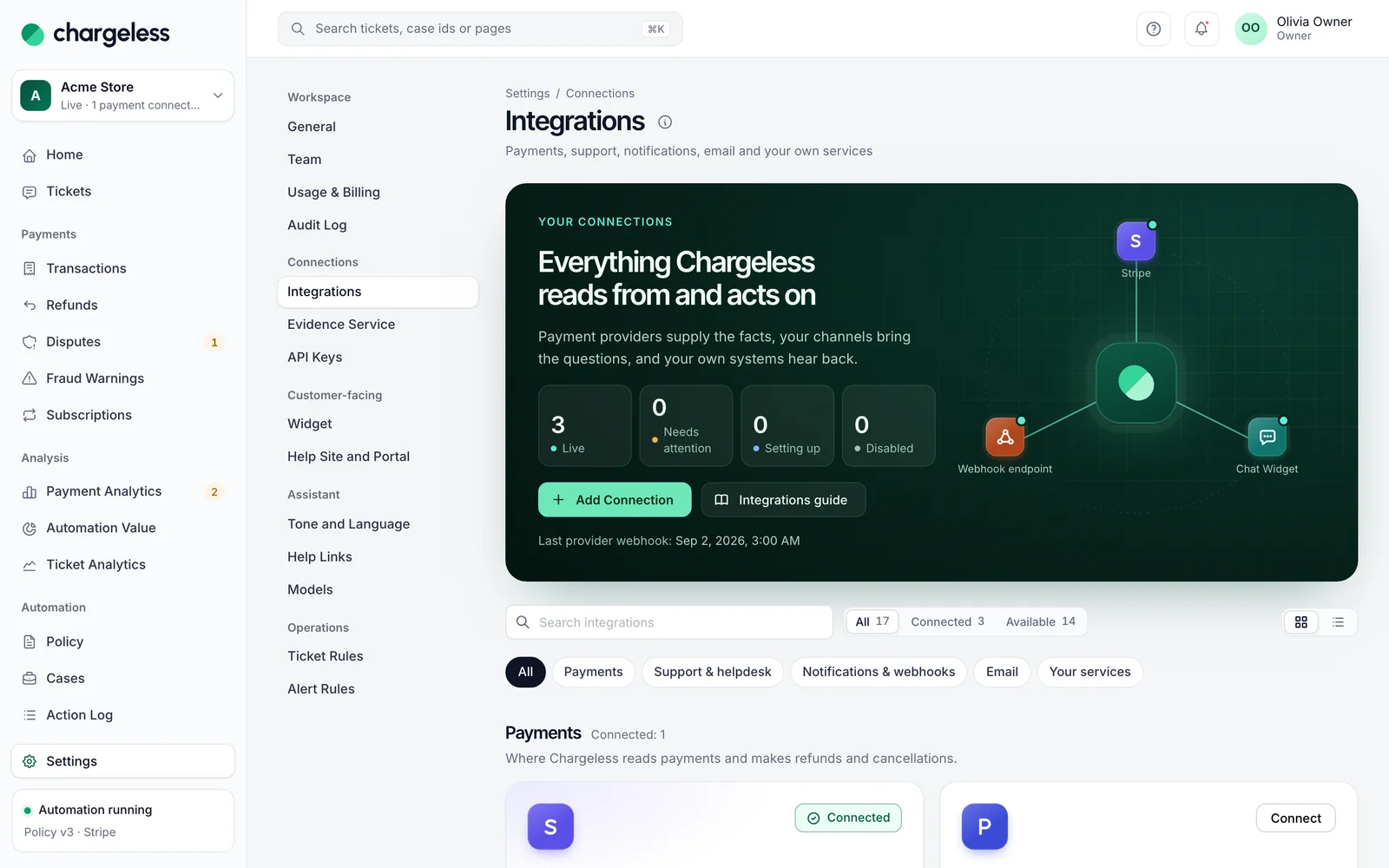
Payment connections
A workspace can have up to 10 payment connections (disabled ones included), for example two Stripe accounts in different regions, or Stripe beside your own system. Choose Connect on a payment provider's card (or Add another on one already connected), give it a Name and, except for Stripe, its Settlement currency: the currency the account pays out in. For a Stripe account Chargeless reads it from the account when you connect it. It is fixed once the connection is live.
A connection is Not live yet, Live or Disabled. Requests about charges on a connection that is not live, or disabled, always go to your team.
- Disable Connection: new automated actions on it go to your team; actions already approved still finish; its webhooks are still received.
- Enable Connection: runs the go-live checks again.
The policy compares each charge in its own currency (see Amounts and currencies), and the rule builder can tell connections apart (Payment connection).
Stripe, Paddle, FastSpring, Adyen, dLocal, Ecommpay, PayPal, Nuvei and your own system are the kinds of connection.
Stripe
In Stripe, create a restricted key with:
- Read: Account, Customers, Charges and PaymentIntents, Invoices, Products and Prices, Radar early fraud warnings, Events.
- Write: Refunds, Disputes, Subscriptions.
A full secret key also works; publishable keys are refused. Test-mode keys work for trying things out. Without Account read, Stripe refuses the key check; without Refunds or Radar read, the history import stops early. Without Events read, the hourly check for missed webhooks cannot run (the connection's page shows it failing).
In Stripe, add a webhook endpoint with the Stripe webhook address the panel shows (it starts with
https://hooks.), and send it these events:charge.succeeded,charge.updated,charge.refunded,charge.failed,payment_intent.payment_failedrefund.created,refund.updated,refund.failed,charge.refund.updatedradar.early_fraud_warning.createdcharge.dispute.created,charge.dispute.updated,charge.dispute.closed,charge.dispute.funds_withdrawn,charge.dispute.funds_reinstatedcustomer.subscription.updated,customer.subscription.deleted,customer.updated,customer.deletedinvoice.paid,invoice.payment_succeeded,invoice.payment_failed,invoice_payment.paidStripe offers two payload styles for a destination, and either works: snapshot events with the types above, or thin events with the same types behindv1.(v1.charge.succeeded, …). For a thin event Chargeless reads the event and its object from Stripe with your key.
In Chargeless, enter the Secret key and the endpoint's Webhook signing secret (
whsec_…) and choose Check and Save. Chargeless checks the key with one read-only call.
With Webhook Endpoints: Write on the restricted key, Chargeless creates the webhook endpoint in your Stripe account itself: step 2 is not needed and the panel asks only for the key.
Paddle
Paddle Billing is a merchant of record: it collects the money and handles chargebacks itself. Chargeless records chargebacks and their warnings on Payments → Disputes and Fraud Warnings, marked Handled by Paddle, and never responds to them.
In Paddle, open Developer tools → Authentication and create an API key with:
- Read: Customers, Transactions, Subscriptions, Adjustments, Notification settings, Events.
- Write: Adjustments, Subscriptions, Notification settings.
Choose the longest expiry Paddle allows. A sandbox key (
pdl_sdbx_apikey_…) works for trying things out.In Chargeless, choose Paddle → Connect, paste the key and check it. Chargeless checks every read permission, then creates the webhook (Paddle's notification destination) in your Paddle account itself. Missing permissions are listed by name.
- Paddle reviews most refunds before they are paid. A refund Chargeless asks for shows as pending until Paddle approves or rejects it; a rejection goes to your team.
- Paddle keys expire. Seven days before, the connection shows the date: create a new key and paste it on the connection.
FastSpring
FastSpring is a merchant of record too: its chargebacks show as Handled by FastSpring and Chargeless never responds to them.
- In FastSpring, open Developer Tools → APIs → API Credentials and create a username and password (FastSpring shows the password once).
- In Chargeless, choose FastSpring → Connect, enter them and choose Live orders or Test orders (one FastSpring store holds both).
- In FastSpring, open Developer Tools → Webhooks → Configuration, add a webhook for the same orders with the Webhook URL the panel shows as its endpoint, select the events the panel lists, and leave the secret empty.
- Back in Chargeless, choose I added it: secure the webhook: Chargeless sets the webhook's secret at FastSpring. You can also paste the secret yourself; it is shown once.
- The connection can go live once FastSpring sends its first event: place a test order if none comes soon.
Adyen
In Adyen's Customer Area, open Developers → API credentials and pick (or create) a web service user with these roles:
- Checkout webservice role
- Management API — Webhooks read and write
- Disputes, to accept disputes
Generate an API key. A test-environment key works for trying things out.
In Chargeless, choose Adyen → Connect and paste the key. For a live key, also enter the Live URL prefix (Customer Area → Developers → API URLs, the part before
-checkout-live). Chargeless reads which merchant accounts the key reaches (choose one if there are several), checks the roles, then creates the webhook and its HMAC key in your Adyen account itself. Missing roles are listed by name.
- Adyen cannot be read back: Chargeless knows its payments from the webhook on. A payment made before the connection is not found, and a request about it goes to your team.
- A refund is pending until Adyen's
REFUNDnotification confirms it; with no answer within 24 hours, it goes to your team. - Disputes go through Chargeless's dispute handling, as Stripe's do; Adyen's fraud notices are decided by your fraud alert rules.
dLocal
- In dLocal's Merchant Dashboard, open the API credentials and copy the login (X-Login), the trans key (X-Trans-Key) and the secret key.
- dLocal answers only the server addresses registered in your dashboard: add Chargeless's addresses there (Chargeless support gives you the current list).
- In Chargeless, choose dLocal → Connect, enter the three values and choose Test mode (dLocal's sandbox) or Live mode. If the check names a registered IP address as missing, step 2 is not done yet.
- In dLocal's dashboard, set the Webhook URL the panel shows as the notification URL, and as the notification URL for disputes too. Refunds name it themselves.
- The connection can go live once dLocal sends its first notification: make a test payment if none comes soon.
- Chargeless reads the payment from dLocal before every refund decision, so a refund made in dLocal's dashboard a moment ago counts.
- Disputes go to your team, who answer them in dLocal's dashboard.
- dLocal's ids show with
_for-(D_4_…forD-4-…).
Ecommpay
- In Ecommpay's dashboard, open the project and copy its project ID and secret key. A test project and a live project are separate: connect each as a connection of its own.
- In Chargeless, choose Ecommpay → Connect, enter them and choose Test mode or Live mode.
- Ask Ecommpay (support or your account manager) to set the Webhook URL the panel shows as the project's callback URL.
- The connection can go live once the first callback arrives.
- Past payments (optional). To bring in your history, also paste a Data API token and its secret key: in Ecommpay's Dashboard, My profile → API tokens → New token (the token's user must see the project). Going live then imports the window you choose, 30 to 365 days: the payments with their refunds, the current subscriptions and the disputes, open ones going to your team. Disputes are read only if the token's user has the Risks or Merchant admin role. Without a token, Chargeless knows payments from the first callback on.
- Ecommpay keeps no idempotency key, so Chargeless sends each refund once. If the answer is lost, Chargeless never sends it again: Ecommpay's callback settles it, or after 24 hours it goes to your team.
- Cancelling a subscription stops the debits of its COF series.
- Disputes go to your team, who answer them in Ecommpay's dashboard.
Nuvei
A Nuvei connection is one Nuvei site: add each of your sites as a connection of its own. Chargeless uses both of Nuvei's APIs: REST 1.0 to refund and cancel, and REST 2.0 (the Data API and the Disputes API) to read payments and disputes. Without REST 2.0 the connection cannot go live; if your account does not have it, ask Nuvei to open it.
- In Nuvei's Control Panel, as an admin user, open My Integration Settings and copy the merchant ID, the merchant site ID and the site's secret key. Only admin users can see the secret key.
- In Settings → REST 2.0 API Credentials, create an Operations API key for the same site and copy it with its processing entity ID. Only a user with the Developer only role can create one: if nobody has that role, an admin gives it to a user first.
- If your Nuvei account keeps the REST 1.0 IP allow-list on, add the addresses the panel lists under Nuvei's IP allow-list to it before checking. If the panel lists none, ask Chargeless support for them.
- In Chargeless, choose Nuvei → Connect, enter the five values, choose the Environment you copied them from (Sandbox or Production: nothing in the values says which) and choose Check and Save. Chargeless checks them with one read each and changes nothing in your Nuvei account. A test workspace offers only Sandbox.
- In Nuvei's Control Panel, open Events Configuration and send these six event types to the Webhook URL the panel shows:
Chargeback,Fraud reported Transaction,Pre-Chargeback Alert,Control Panel Generated Transaction,Dispute API Callback,Dispute API Image Callback. Your own payment notification URL stays as it is. - Go Live does not wait for an event: disputes are rare and Nuvei sends no test event. It imports the window you choose, 30 to 365 days: the payments with their refunds, the active subscriptions of Nuvei's rebilling and the disputes Nuvei's Disputes API lists, open ones going to your team.
- Payments arrive about every hour, read from Nuvei's Data API: a payment made a moment ago can take an hour or two to be found, and a request about it before then goes to your team. Customers verify with the email Nuvei holds for the payment; a payment with no email (some alternative payment methods) can only be found by your team.
- Refunds, full and partial, are sent once. If the answer is lost, Chargeless never sends the refund again: it reads it back from Nuvei, and Nuvei's notification or the hourly read settles it, or after 24 hours it goes to your team. Some payment methods refund later; until Nuvei confirms, the customer is told the refund was requested. For now, a refund in a currency without two decimals (JPY, KWD and others) goes to your team.
- Cancellations: Chargeless cancels subscriptions that Nuvei's rebilling runs. If you bill on your own schedule (charges you start on a stored card, or Recurly or Zuora on top of Nuvei), Nuvei holds no subscription: the charges can still be refunded, and cancellation requests go to your team. The connection's drawer says when Nuvei holds no subscriptions.
- Disputes: Visa and Mastercard chargebacks for which Nuvei is the acquirer, as Nuvei's Disputes API lists them, are accepted when your policy says to accept. The money is already withdrawn, so accepting moves none. A dispute your policy would contest goes to your team with its deadline, to answer in Nuvei's Control Panel, until Chargeless can produce the PDF documents Nuvei takes as evidence. Every other dispute (American Express, Discover, alternative payment methods, other acquirers) is recorded and goes to your team with its deadline. If the Disputes API refuses the key, every dispute goes to your team, and the drawer says so.
- Fraud reports (
Fraud reported Transaction: the card issuers' TC40 and SAFE reports) are decided by your fraud alert rules, as Stripe's early fraud warnings are. They often arrive after a chargeback; one Nuvei marks as already refunded or charged back needs nothing. - Pre-chargeback alerts (Ethoca) are recorded on the charge. One that your own refund rule in Nuvei has not refunded goes to your team, who answer it in Nuvei's Control Panel.
- Nuvei records no settlement amount per charge: a Nuvei charge is compared with your policy's limit in its own currency, so state a limit for each currency you charge in. A limit stated only in the settlement currency hands the charge to your team.
- A PayPal payment taken through Nuvei belongs to the Nuvei connection and is refunded through Nuvei. Connect PayPal itself only for payments PayPal takes directly; the panel notes it when you add one beside the other.
- A connection that has gone live keeps its site, account and environment: values of another are refused. Check Again in the connection's drawer checks the stored credentials with Nuvei; the drawer also shows the Last event. If you remove the connection, remove its URL from Events Configuration too.
Your own payment system (merchant-hosted)
If your payments do not run on Stripe, Chargeless can work with your system through the merchant-provider/v1 contract, over REST or MCP. Your system supplies facts (customers, charges, subscriptions) and carries out the refunds and cancellations Chargeless approves; it never decides. Before every decision Chargeless reads fresh data from it.
You manage it on Settings → Payment Provider:
- Base URL (https on port 443) and Transport.
- Signing Secret: requests Chargeless sends are signed. To rotate, Stage a new secret, deploy it beside the current one, then Activate (a full contract check runs with the new secret first) or Discard. Rotate Now is for leaks only.
- Outcome Callbacks (optional): your system tells Chargeless when an operation finishes; Chargeless then reads the result from you. When rotating the callback secret you can keep the old one for 7 days.
- Conformance Kit: run
providercheckagainst your system and upload its sealed report to Attest the Report. A passed run from the last 30 days is required to go live and to change transport. - Provider Calls shows 90 days of calls, and provider alerts warn you when credentials are rejected, your system breaks the contract or cannot be reached.
The full contract, signing rules and conformance kit are described in the merchant provider guide.
Helpdesk
Connect a helpdesk so tickets there reach Chargeless: the automation answers what your policy allows and leaves the rest to your team in the helpdesk. Chargeless writes back into the helpdesk ticket, and stops as soon as an agent takes the ticket over.
Zendesk
- On Settings → Helpdesk, enter your Zendesk subdomain and choose Connect Zendesk. Approve the access in Zendesk within 10 minutes; the person who approves becomes the integration user.
- Set the Trigger tag: tickets with this tag come to Chargeless.
- Let Chargeless Create the webhook and its trigger for me (needs a Zendesk admin), or create your own webhook and enter its Webhook signing secret.
You can then choose Your helpdesk (Zendesk) as the handoff destination: each handoff becomes a Zendesk ticket (the team queue is used if the connector cannot take it).
Webhook connector (any helpdesk)
For another helpdesk, your own glue posts signed helpdesk-event/v1 events to the connector's Inbound URL, and Chargeless posts replies to your Write-back URL. Events are signed like outgoing webhooks. To rotate the secret, Stage a new secret, send a connector.ping signed with it, then Activate the secret; the previous secret keeps working until you retire it.
Freshdesk and Intercom show as "Coming soon".
Channels
Email inbox
Connect on Email inbox creates an Inbound address. Forward your support address to it (the panel has guides for Gmail, Google Workspace, Microsoft 365 and other providers). Up to 10 inboxes; Rotate Address if the address leaks.
Incoming email opens tickets that the automation answers first. A customer is identified from their email only when the message passes the sender checks (DMARC) and comes from the address bound to the ticket; otherwise the automation does not reply and your team gets the ticket. Your team's replies use your inbox as the Reply-To, so answers thread back into the ticket.
Chat widget
Managed in Settings → Widget. See The widget and customer identity.
Webhooks
Webhook endpoints send events to your own systems.
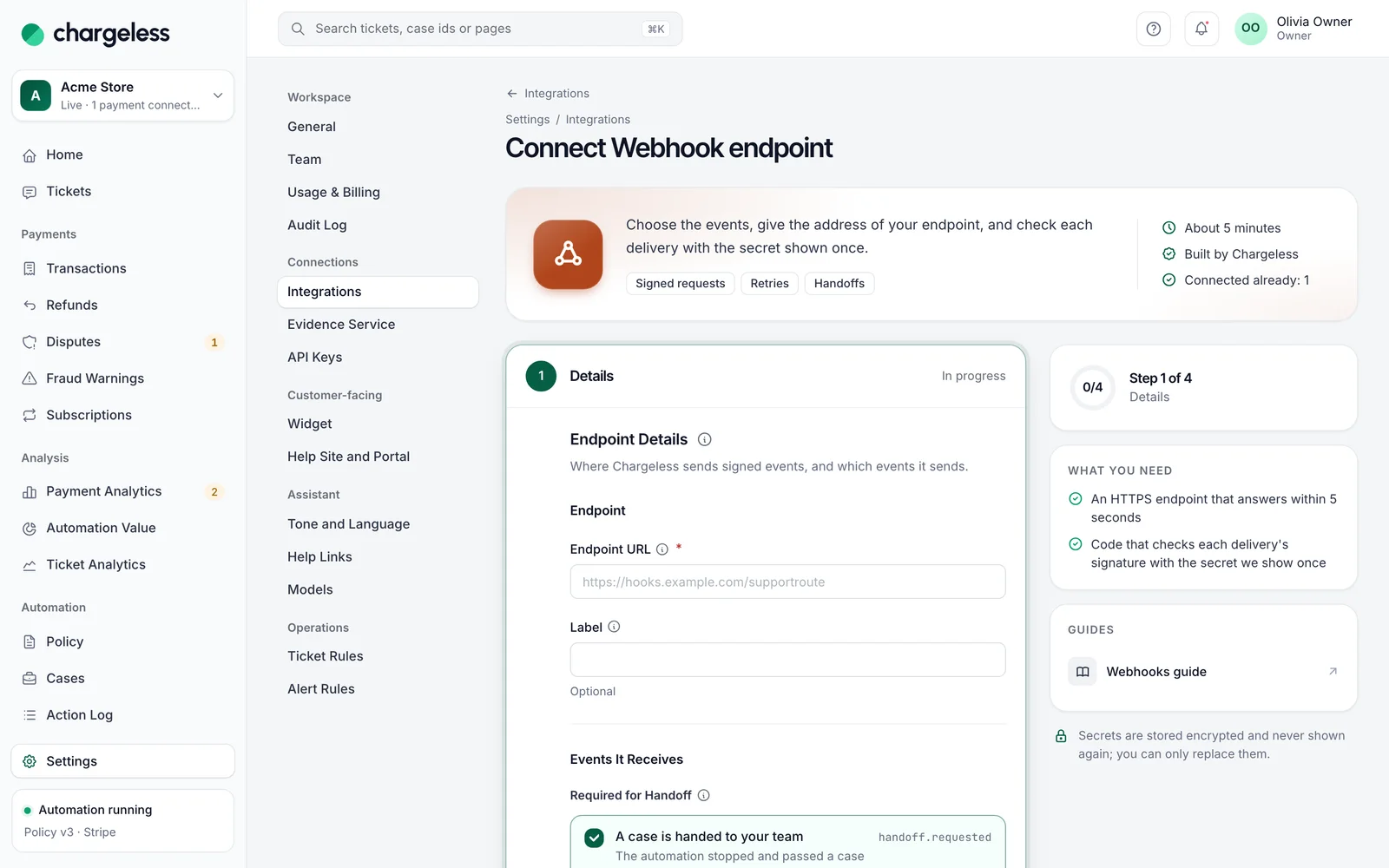
Add up to 10 under Notifications & webhooks: an Endpoint URL (public https on port 443; redirects are never followed), a Label, and the Events It Receives:
| Event | Sent when |
|---|---|
handoff.requested |
A case is handed to your team |
action.failed |
An approved refund or cancellation could not be carried out |
ticket.handed_to_team |
A ticket is handed to your team |
action.executed |
An approved refund or cancellation is carried out |
refund.reversed |
A refund is reversed |
customer_request.decided |
A request from your own form is decided |
ticket.status_changed |
A ticket's status changes (by your team, the customer or Chargeless) |
payment_alert.opened / payment_alert.resolved |
A payment alert opens / is resolved |
ticket.message_received |
Listed in the panel but not sent yet |
If handoffs go to a webhook, the first three events must each be received by an enabled endpoint. New event types are never added to an existing endpoint automatically.
When you create an endpoint, its signing secret (srwh_…) is shown once. Send Test Event sends a ping (up to 10 per hour per endpoint).
For each event's body, retries, duplicates and ordering, engineers can read the webhook reference.
Verify a signature
Every delivery carries:
X-SupportRoute-Timestamp: Unix seconds.X-SupportRoute-Signature:v1=followed by the hex HMAC-SHA256 of{timestamp}.{body}with your secret.X-SupportRoute-Event: the event type.X-SupportRoute-Delivery: the delivery id, the same on every retry. Use it to ignore duplicates.
Recompute the HMAC over the raw body, compare in constant time, and reject timestamps more than 5 minutes old:
import crypto from 'node:crypto';

function verify(rawBody, headers, secret) {
  const ts = headers['x-supportroute-timestamp'];
  if (Math.abs(Date.now() / 1000 - Number(ts)) > 300) return false;
  const expected = 'v1=' + crypto.createHmac('sha256', secret).update(`${ts}.${rawBody}`).digest('hex');
  const candidates = [headers['x-supportroute-signature'], headers['x-supportroute-signature-previous']];
  return candidates.some((sig) =>
    sig && sig.length === expected.length && crypto.timingSafeEqual(Buffer.from(sig), Buffer.from(expected)));
}
Answer with a 2xx status quickly. Timeouts, 408, 429 and 5xx answers are retried with growing delays (the last attempt comes about 12 hours after the first for handoff and outcome events, about a day for alerts); other 4xx answers are final.
Rotate a secret
Rotate Secret shows the new secret once. For 7 days, deliveries are signed with both: the new one in X-SupportRoute-Signature and the old one in X-SupportRoute-Signature-Previous, so you can deploy the new secret without missing anything. Retire Previous ends the overlap early.