Tickets: your team after a handoff
Chargeless resolves what your policy allows. Everything else becomes a ticket for your team. This page covers the queue, replying, refunding from a ticket, response targets, macros and views.
Where tickets come from
| Channel | How it starts |
|---|---|
| Chat handoff | A chat the automation could not finish, with the whole conversation. |
| Widget message / Web form | A customer's "leave a message" from the widget. |
| A message to one of your inboxes (see Integrations → Email inbox). | |
| Helpdesk | A ticket from Zendesk or your helpdesk connector. Handled in your helpdesk, shown read-only here. |
Email, widget-message and web-form tickets are answered by the automation first. Once it cannot resolve them, or a teammate takes over, the ticket is the team's and the automation never replies on it again (apart from one acknowledgement to the customer).
Each ticket shows who has it under Handled by: Automation, Team, or External (your helpdesk owns it).
When a ticket reaches the team's queue, members who can assign tickets get a notification in the panel.
Handoffs go to the team queue only if your handoff destination includes it (Settings → General → Where Handoffs Go: Team queue, Webhook only, Team queue and webhook, or Your helpdesk (Zendesk)).
The queue
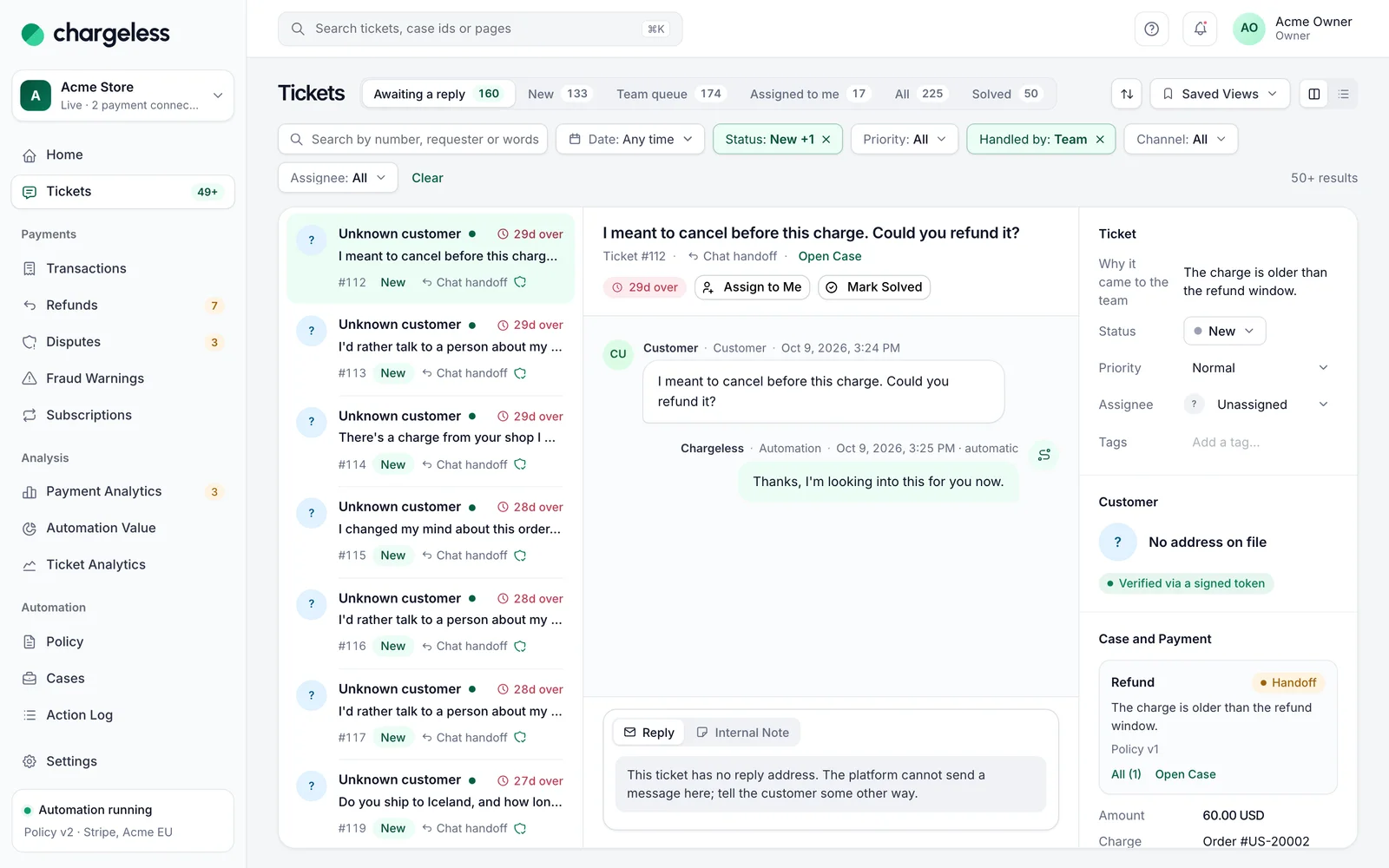
Tickets opens on Awaiting a reply. Ready-made views:
- Awaiting a reply: new or open team tickets, by response target.
- New: unassigned new team tickets.
- Team queue: every open team ticket.
- Assigned to me, All, Solved.
Filter by status, handling, priority, channel, dates and text. Save as View keeps a filter; tick Shared with the team to share it. On a wide screen the queue and the ticket sit side by side.
Statuses: New, Open, Waiting on customer, On hold, Solved, Closed. Closed is final and read-only: a new message from the customer opens a new ticket. Priorities: Low, Normal, High, Urgent.
A typical handoff, from the team's side
- A customer asks the chat for a refund of a charge older than your window. The policy hands it off.
- A ticket appears under New, with the whole chat, Why it came to the team ("The charge is older than the refund window."), the verified customer and the case.
- You Assign to Me, read the case, and decide to make an exception: Take Action → Refund, Preview, then (as an owner or admin) Override the Policy with your authenticator code.
- Add the Outcome to the Reply, write a line of your own, and Send. The customer gets it by email; their answer comes back into the ticket.
- Mark Solved.
Work a ticket
- Assign to Me or pick an Assignee.
- Write in the composer ("Write a reply or an internal note") and choose Send. Replies go to the customer by email, from your inbox, so the customer's answer comes back into the same ticket. The first staff reply moves a new ticket to Open.
- Internal Note: only your team sees notes.
- Mark Solved when you are done.
A ticket with no reply address says so; tell the customer some other way.
Suggested replies
Suggest a Reply asks the AI for a draft based on the ticket and the customer's verified account. The draft is checked like any automated reply and marked "Suggested by AI — review before sending". Insert into Composer (replace or append) or Dismiss. Nothing is sent until you send it.
Macros
Apply Macro inserts a saved reply and can set the status, priority, tags and assignee. Placeholders: {{ticket.number}}, {{requester.name}}, {{agent.name}}, {{merchant.name}}. A macro never moves money. Define macros in Settings → Ticket Rules → Macros.
Refund or cancel from a ticket
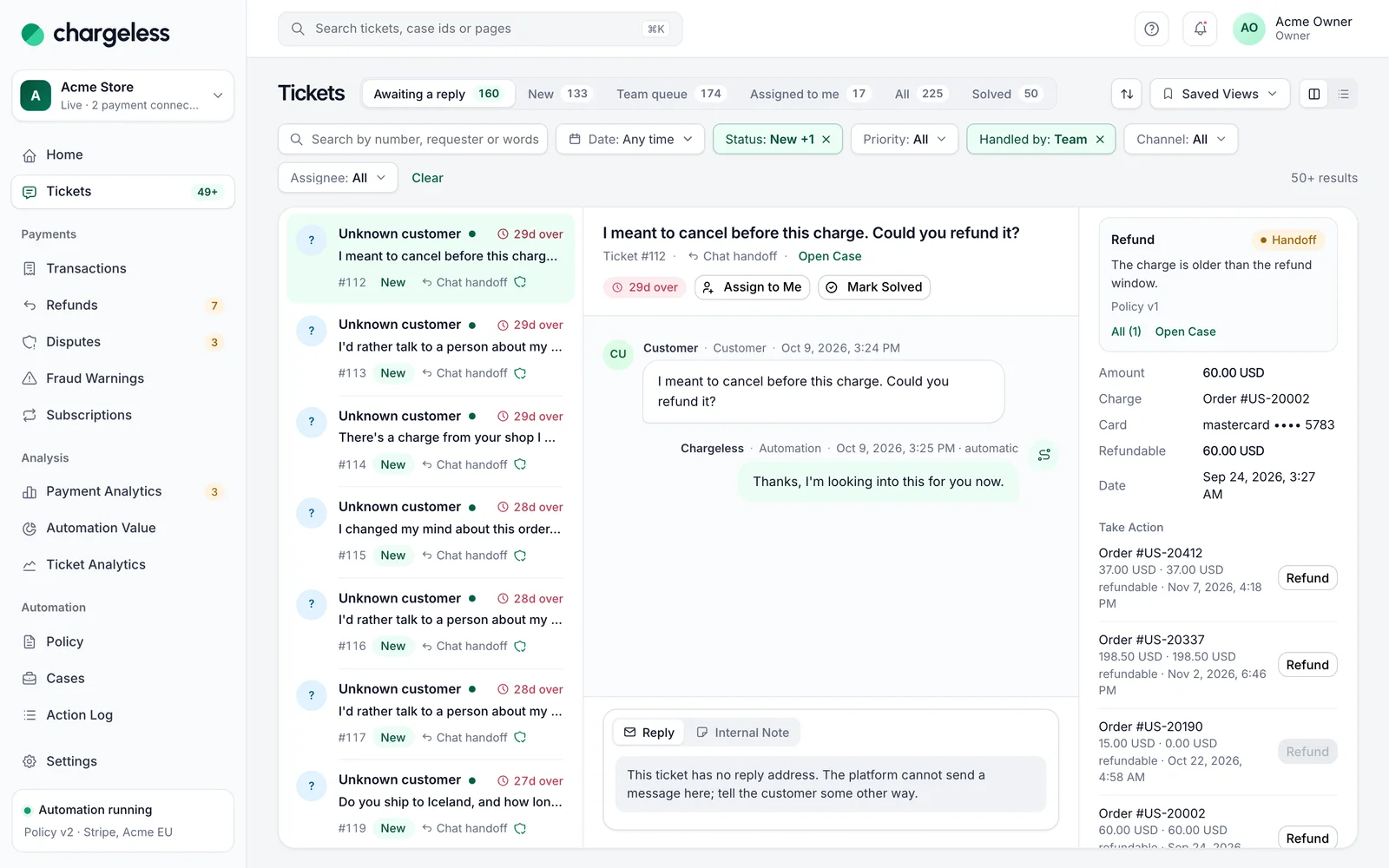
If the ticket is linked to a verified customer, Take Action offers Refund and Cancel Subscription:
- Pick the charge or subscription, a reason (Duplicate charge, Forgot to cancel, Unrecognized charge, Not as described, Service issue, Other) and, for a refund, the full remaining amount or a part of it.
- Preview shows what the policy decides.
- Submit. Use Add the Outcome to the Reply to tell the customer.
Staff actions go through the same policy, limits and records as the automation, with your name on them.
Going beyond the policy
Owners and admins can choose Override the Policy → Override and Submit, confirmed with an authenticator code. An override passes the policy's own reason, window, amount and cancellation rules (a missing limit in the charge's currency included), and your custom rules. It never passes the emergency stops, what is left to refund on the charge, the velocity limits or the circuit breaker. The case records it as "Beyond policy, by {name}".
You can also refund a payment from Payments (see Payments) and cancel a subscription from its page.
Response targets (SLA)
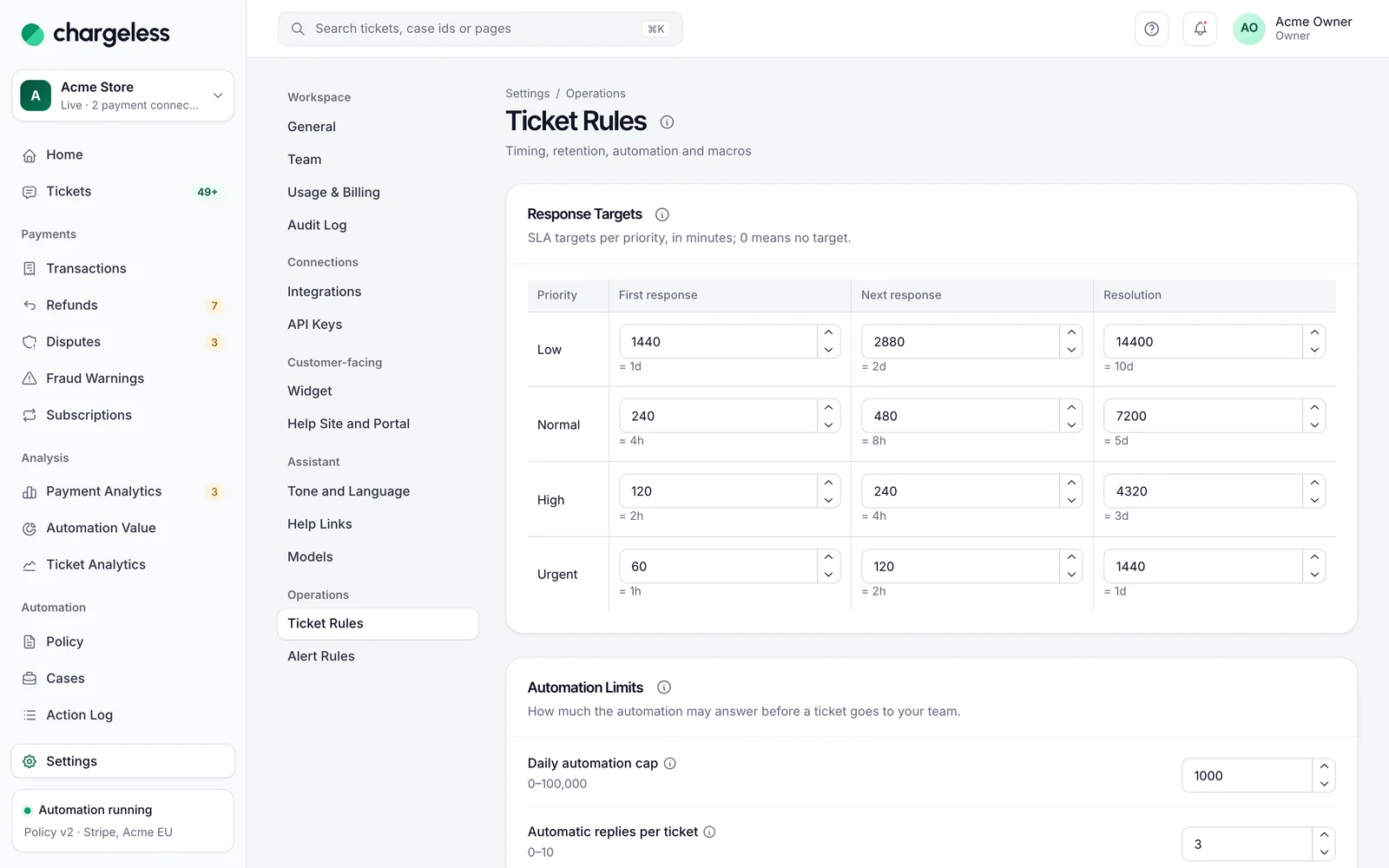
Settings → Ticket Rules → Response Targets: minutes per priority for First response, Next response and Resolution (0 = no target). A missed target notifies the assignee, or owners and admins when nobody is assigned, in the panel and by email. Targets only notify; they never change a ticket.
Ticket settings
Settings → Ticket Rules also has:
- Automation Limits: automatic replies per ticket, and a daily cap on automated ticket replies (0 turns automated ticket replies off).
- Daily Automatic Replies per Requester: per email sender (default 5) and per helpdesk requester (default 20).
- Data Retention: days after closing (30–3,650, default 365) before a ticket's content is removed.
- Macros.
Inboxes are under Settings → Integrations → Channels.
Ticket Analytics
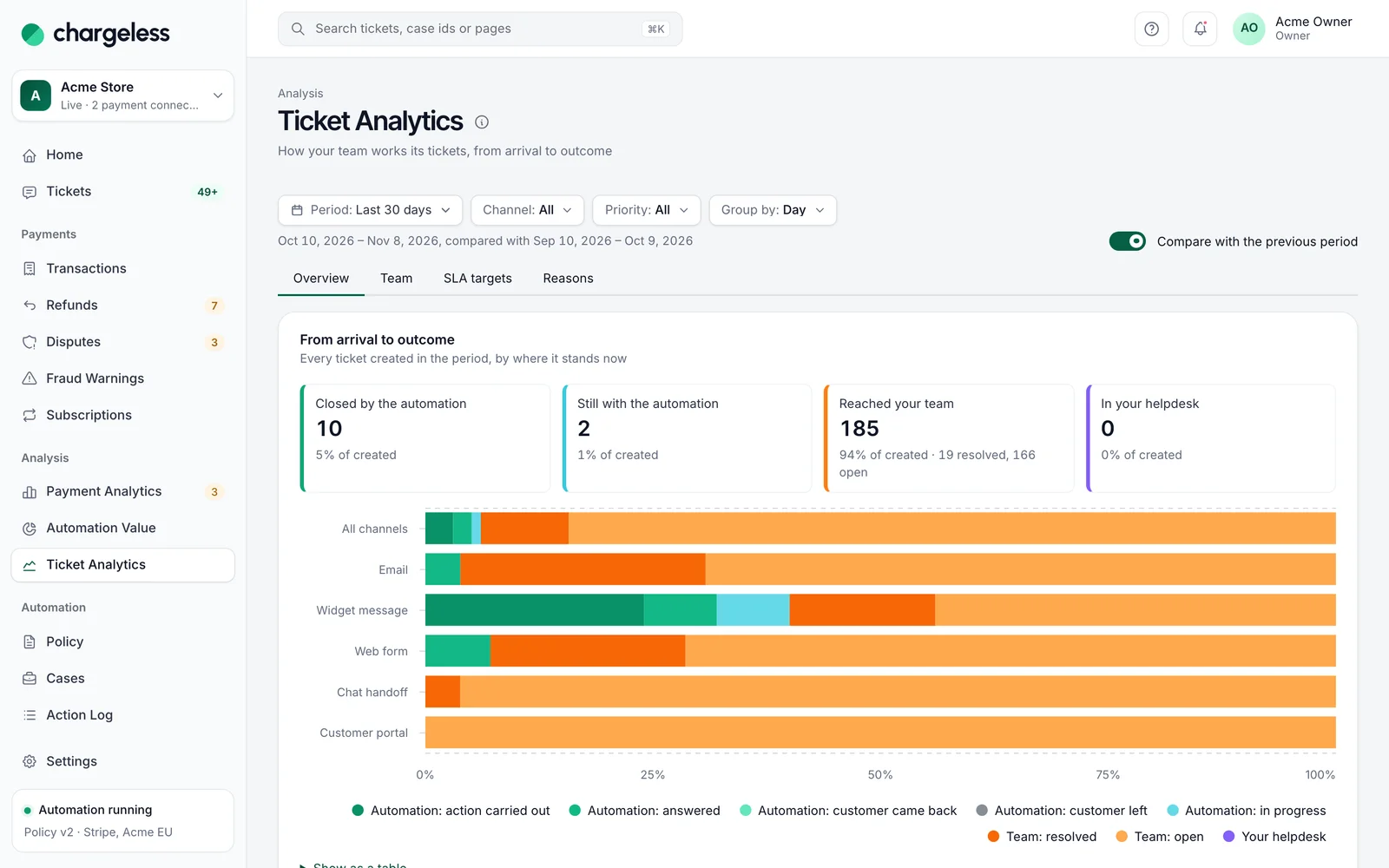
Analysis → Ticket Analytics (at /ticket-analytics) shows how tickets arrive and end, the queue right now, response targets met, why tickets reached your team, per-member figures, languages and reopened tickets. Tickets worked in an external helpdesk are left out of the team's figures.